QR Studio
How to test a QR code before you print it
The person who finds a broken QR code is never the person who designed it. Five minutes of testing before you print is cheaper than a second print run, so here is the order to do it in.
Want to test your code before you print?
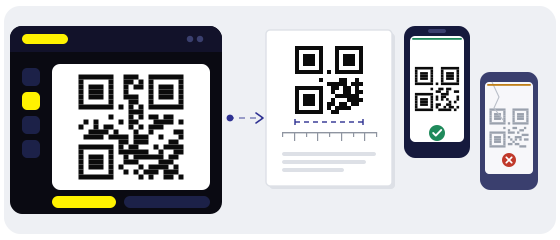
Open StudioScan with two phones, and let one of them be old
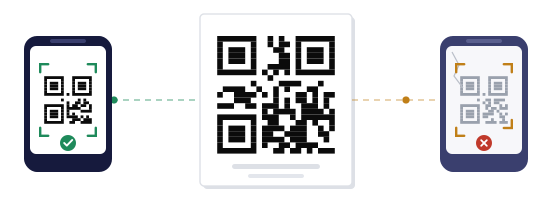
Your new phone will read almost anything. Dig out an older one — five years old is a good baseline. The gap between those two devices is the gap between "it worked for me" and "it did not work for the guest".
Wipe the lens first. A fingerprint blurs the image exactly the way a bad print does, and you end up fixing a code that was fine all along.
If the built-in camera reads it and a scanner app does not, do not rush to change the code. It is usually contrast or size — scanner apps tend to be pickier about edges and about the empty margin around the square.
Print it at 1:1 and hang it where it will really hang
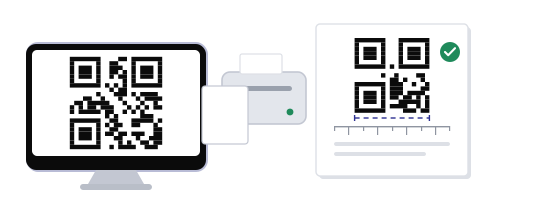
A screen shows the code big and bright. Paper will not. Print on an ordinary office printer at 100 % — not "fit to page", because that checkbox quietly steals millimetres.
Then tape the sheet where the real one goes: a shop window, a table, a corridor wall. Step back. Look from the side. Check it under a lamp and in shadow.
This is where you see what a monitor hides: a size that is too small, glare from glass, a code on a fold, a code at an angle or on a curved bottle.
A simple rule: if it reads from three metres in dim light, it will read in daylight, up close and on an old phone.
Check where the code goes
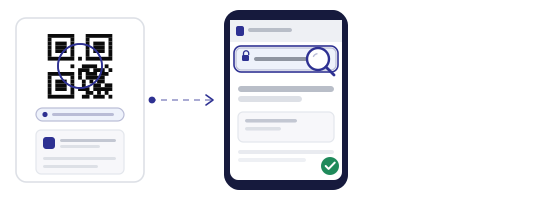
Open the link on a phone, not on your laptop. The page has to work under a thumb: no tiny buttons, no sideways scrolling, no demand to sign in.
Watch how long it takes on mobile data. Three seconds and the person has already put the phone away.
And check the language. A code in a Ukrainian shop window should not send people to the English page.
Check that scans are actually counted
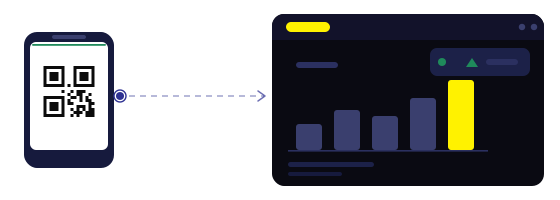
A dynamic code has an address, and the address is what produces the statistics. Open the link once and look at your dashboard: did the visit appear?
Do not inflate your own numbers. Fifty test scans from your phone will ruin the picture later. Either mark test visits separately or scan from a device you will delete.
If the code is dynamic, confirm the destination can be changed after printing. That is the whole reason people choose dynamic codes: the site moves, you swap the link, and the stickers stay where they are.
Failures that look like a broken code, when the code is fine
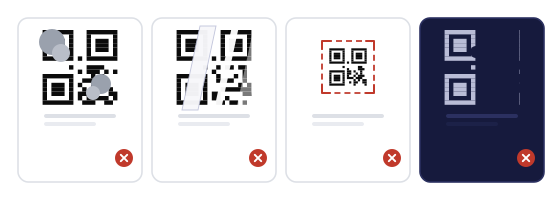
None of these have anything to do with the link. So when a code will not read, look at the print first and the address second.
Write down five lines so you never test twice
- The date, and who tested it.
- Which printer and which material.
- Which phones you scanned with, and from what distance.
- What actually opened — the address and the page language.
- What you decided: print, resize, raise the contrast.
Five lines take half a page. A month later they are what stops the argument about who said what.
Three questions that come up every time
When to reprint, and when not to bother
Reprint if a current phone cannot read it, if it fails from the real standing distance, or if the address itself is wrong. Those three do not fix themselves.
Do not panic if only one old phone failed while everything else reads it. Old cameras hunt for focus. But if the run is a thousand pieces, raise the contrast and print again.
Where to do all of this in the QR Studio
In the QR Studio you build the code, see it at the size it will be printed, and export a file for the print shop. Ready-made templates are there too, if you do not want to start from a blank sheet.
Before you send it off, run it through the QR scanner: it shows what is inside the code before anything opens. And if you just need a quick code without styling, the generator is one page away.